
How to Add a Chatbot to Your Wix Website in Minutes
A step by step guide to installing an AI chatbot on Wix Studio or the classic Wix Editor, what the retirement of Wix Chat means for site owners, and how to choose between the native and embedded options.

Stan
@stan
Wix now powers 4.3 percent of all websites, a 6.1 percent share of the CMS market, and has been the fastest-growing major website platform for two years running, according to W3Techs data from July 2026 and Colorlib's 2026 Wix statistics. More than 8.5 million live sites run on it, most of them owned by exactly the kind of small business that cannot staff a support inbox around the clock.
That makes Wix sites strong candidates for AI chat, and the installation is genuinely one of the fastest of any platform: a single script tag pasted into one settings panel. But 2026 has also been a confusing year for chat on Wix specifically. Wix retired its long-standing native chat product, replaced an interim AI assistant, and introduced a new one, all within months. This guide explains what changed, compares your realistic options, and then walks through the embed process on both Wix Studio and the classic Wix Editor.
The State of Chat on Wix in 2026
For years the default answer to "how do I add chat to Wix" was Wix Chat, the free native app connected to Wix Inbox. That answer is now historical. According to Wix's own help center, Wix Chat is no longer available to install on new sites. Its successor, Wix AI Site Chat, had an even shorter run: Wix documentation notes it stopped being available to new sites in March 2026. Both are being consolidated into a new product called Wix Smart Chat.
If you already have Wix Chat installed on an older site, it keeps working. But if you are setting up chat on a new Wix site today, you are choosing between the native Smart Chat and embedding a third-party AI chatbot through custom code. The two approaches solve different problems.
Native Wix chat products are built around Wix Inbox: they are strongest when a human is available to reply and when the questions concern Wix-managed data like store orders. A dedicated AI chatbot platform is built around your knowledge: it crawls your site and documents, answers autonomously in seconds, and escalates to you only when needed. The honest comparison looks like this:
| Wix Smart Chat (native) | Embedded AI chatbot (e.g. Paperchat) | Legacy Wix Chat | |
|---|---|---|---|
| Available on new sites | Yes | Yes | No, retired |
| AI answers trained on your content | Partial, Wix-managed data | Yes, any site, files, or text | No |
| Works on the free Wix plan | Yes | No, custom code needs a paid plan | Was free |
| Human takeover | Via Wix Inbox | Yes, with notification | Yes, manual only |
| Also works off Wix | No | Yes, same bot on any site | No |
| Lead capture into a CRM | Wix contacts | Built in, plus webhooks and integrations | Wix contacts |
| Multilingual answers | Limited | Yes, automatic | No |
The portability row deserves emphasis for anyone who might outgrow Wix. An embedded chatbot is platform-neutral: the same bot, same training, and same conversation history follow you if you later migrate to WordPress or a custom site, because the widget is one script tag anywhere. Chat built into Wix stays on Wix.
What You Need Before You Start
Three prerequisites, and the second one surprises people:
- A trained chatbot. Create one and give it knowledge before you put it in front of visitors. The fastest route on Wix is pasting your site URL into your chatbot platform and letting it crawl your published pages. The full process is covered in our guide to training an AI chatbot on your own business data.
- A paid Wix plan with a connected domain. Wix only exposes the Custom Code panel on premium sites with a connected domain. The free plan does not allow third-party scripts at all. This is a Wix platform rule, not a chatbot vendor rule, and it applies to every embedded tool, from analytics to chat.
- Your domain on the chatbot's allowed list. In the Paperchat dashboard, open your chatbot's Setup tab and add your Wix domain under Allowed Domains. If your custom domain is not connected yet, add the
wixsite.comsubdomain too so you can test. The widget deliberately refuses to load on unlisted domains, which stops anyone else from embedding your bot at your expense.
Step 1: Copy Your Embed Code
Every chatbot platform that supports website embedding hands you a script tag. In Paperchat it lives in the Embed tab of your chatbot dashboard, under the HTML option:
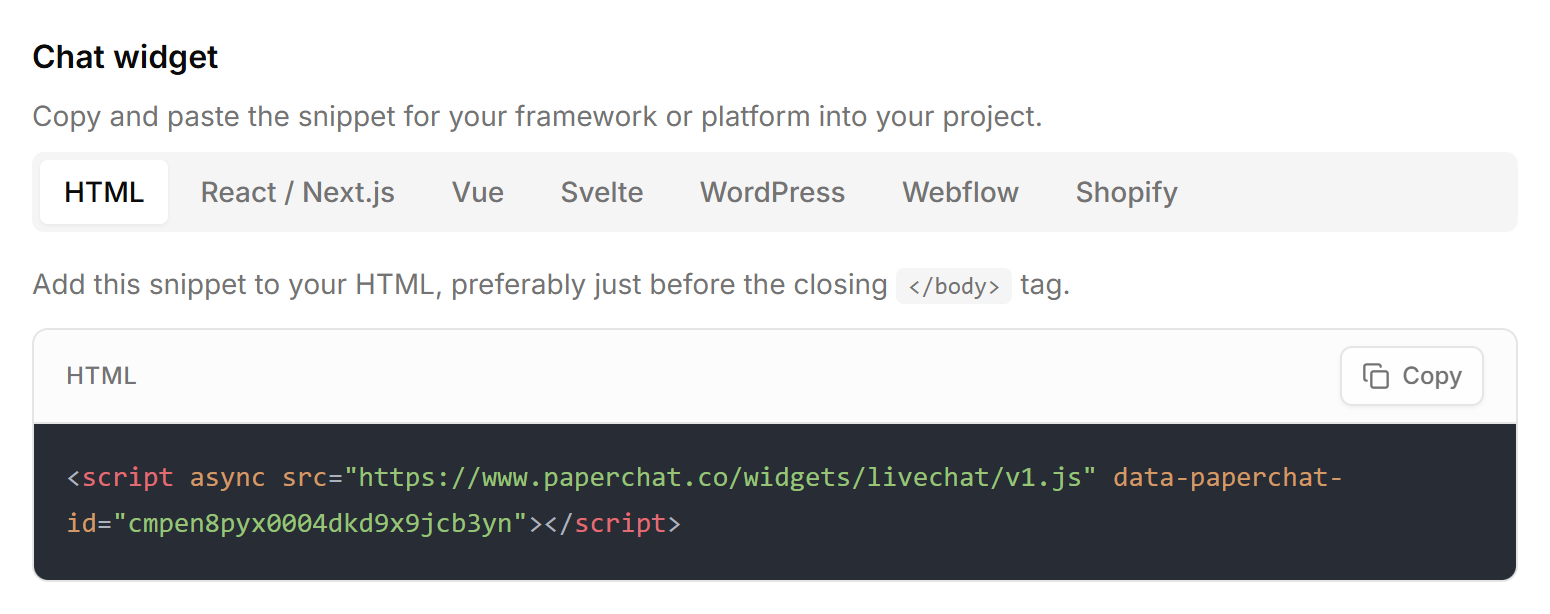
The snippet is one line:
<script async src="https://www.paperchat.co/widgets/livechat/v1.js" data-paperchat-id="YOUR_CHATBOT_ID"></script>Copy it with your real chatbot ID in place. That single tag is the entire integration; everything else in this guide is just telling Wix where to put it.
Step 2: Add the Code in Wix Studio
Wix Studio is the newer editor, so we will start there. The classic Editor path follows below and differs only in navigation.
- From the Wix Studio dashboard, open your site and click Settings in the left sidebar.
- Scroll to the Advanced section and click Custom Code.
- Click + Add Custom Code. A side panel opens.
- Paste the embed snippet into the code field and name it something recognizable like "Paperchat widget."
- Under Add Code to Pages, choose All pages and Load code once.
- Under Place Code in, choose Body, end.
- Click Apply.
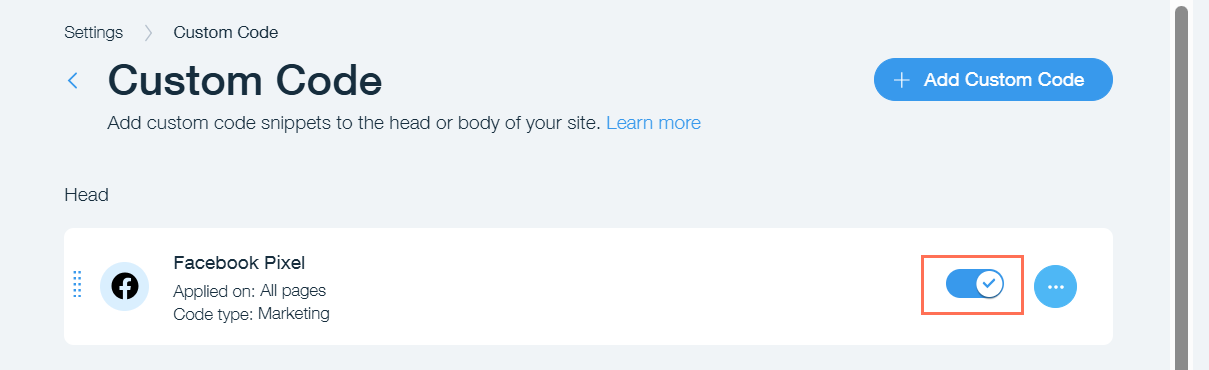
Two of those settings are worth understanding rather than just clicking. All pages, load once means the widget persists as visitors navigate, without re-injecting on every page view. Body, end places the script at the bottom of the document, so your page content renders first and the chat widget loads after, keeping it out of the critical rendering path. A chat bubble that appears half a second after the page is fully painted costs you nothing; a script that delays your hero image does.
Adding It in the Classic Wix Editor
If your site runs on the classic Wix Editor rather than Studio, the panel is the same, reached slightly differently: go to your site's dashboard, then Settings > Advanced > Custom Code, and follow steps 3 through 7 above. Both editors feed the same underlying setting, so nothing about the widget behaves differently.
Step 3: Publish and Verify
Wix applies custom code to the published site, not to the editor preview. This trips up a lot of first-time installs: you add the code, open the editor preview, see no chat bubble, and assume it failed. It did not. Publish the site, then open your live URL in a fresh incognito tab. The bubble should appear in the corner within a couple of seconds.
Then test it like a customer, not like an owner. Ask a question with a real answer on your site ("do you ship to Canada," "what does the premium package include") and confirm the response is drawn from your content. Ask something it cannot know and check that the fallback behavior, whether that is a polite deferral, an email capture, or a human handover, matches what you configured.
Why Bother? The Numbers Behind Chat on Small Business Sites
The typical Wix site is a small operation: a studio, a consultancy, a local service, a small store. For exactly those sites, the gap between a contact form and a conversation is the widest. Visitors who use chat convert at roughly 10 to 20 percent, while traditional contact forms sit at 2 to 3 percent, according to chat-to-conversion benchmarks compiled by Which-50.
Conversion Rate: Contact Forms vs. Chat Conversations
Typical visitor conversion ranges by channel. Visitors who chat convert at four to seven times the rate of form submitters.
Source: Which-50 chat-to-conversion rate statistics by industry, 2026. Bars show the typical low to high range per channel.
The mechanism is not mysterious. A form is a request to wait; a chat answer is the removal of the objection while the visitor is still deciding. That is also why an unstaffed chat widget can outperform a staffed one that answers slowly: response benchmarks show 82 percent of customers expect an immediate reply, and 53 percent give up if nothing arrives within three minutes. An AI answers in about a second at 2 a.m. on a Sunday, which no small team can promise.
Beyond answering questions, the widget earns its place as a lead channel. A well-configured bot asks for an email when the conversation signals buying intent, which is the difference between "someone visited the pricing page" and a contact you can follow up with. We covered the patterns that work in capturing leads with an AI chat widget, and if bookings matter more than emails for your business, the bot can schedule meetings directly through Cal.com.
Troubleshooting
| Symptom | Likely cause | Fix |
|---|---|---|
| No Custom Code option in settings | Free Wix plan or no connected domain | Upgrade the plan and connect a domain |
| Widget missing in editor preview | Expected behavior | Custom code only runs on the published site |
| Widget missing on the live site | Site not republished after adding code | Publish again, retest in incognito |
| Widget appears, then vanishes | Domain not on the allowed list | Add the Wix domain in the chatbot's Setup tab |
| Bubble only shows on the homepage | Code set to specific pages | Change the snippet setting to All pages |
| Answers are generic | No training sources ingested | Add your site URL and documents, wait for training |
One more Wix-specific note: if your site content changes often, remember that the chatbot learned from a crawl, not from a live connection to your Wix pages. Re-sync the crawl when you publish significant changes, or set the sync to run automatically, as described in keeping your chatbot in sync with your website content.
The Bottom Line
Adding a chatbot to a Wix site in 2026 means making one decision and then doing five minutes of work. The decision: native Smart Chat if you mostly want a Wix-integrated inbox and you live entirely inside the Wix ecosystem, or an embedded AI chatbot if you want answers trained on your own content, lead capture, human handover, and a widget that moves with you if you ever leave Wix. The work: copy one script tag, paste it into Settings > Advanced > Custom Code, set it to all pages at the end of the body, publish, and test.
The generic version of this process, covering every platform rather than Wix alone, is in our guide to adding a live chat widget to your website, and the condensed reference steps live in the Wix integration guide.
More Articles
How to Add a Live Chat Widget to Your Website in Under 10 Minutes
A step-by-step guide to installing Paperchat's AI chat widget on any website — no developer required.
March 29, 2026
How to Train an AI Chatbot on Your Own Business Data
Learn how to feed your website, documents, and FAQs into Paperchat so your AI chatbot answers like an expert on your business.
March 29, 2026